

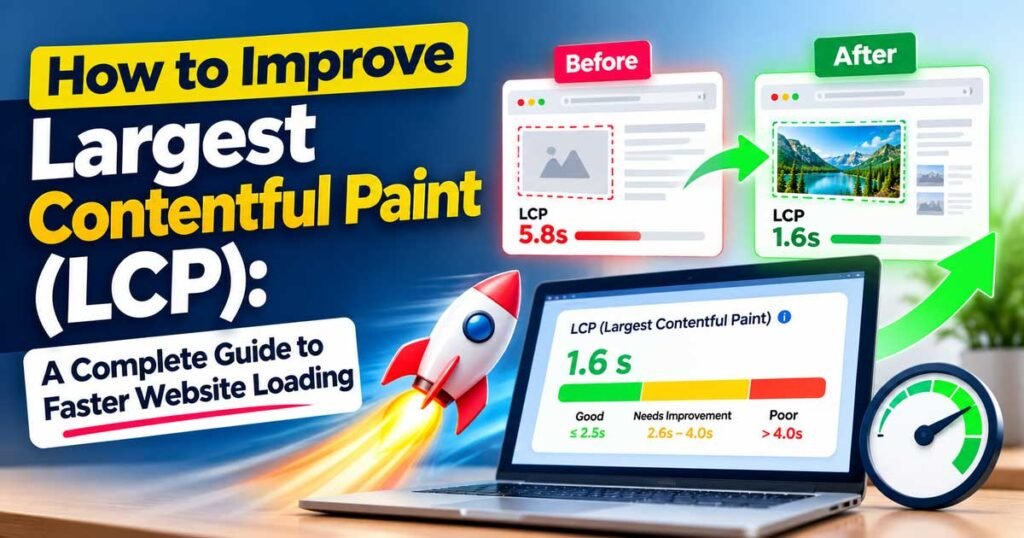
Have you ever opened a website and waited for the main image or heading to appear? The page may start loading immediately, but the most important part still takes time to show up. This can make the website feel slow, even when some other elements are already visible.
The same thing can happen on your website. Your hosting may be working, your design may look good, and your content may be useful, but visitors can still experience slow loading if the main content takes too long to appear.
This is where Largest Contentful Paint (LCP) becomes important.
LCP is a Core Web Vitals metric that measures how long it takes for the largest visible image or text block in the initial screen area to appear. A good LCP score helps visitors see the main content sooner instead of waiting for the important part of the page.
If you want to improve website speed, fix Core Web Vitals issues, and make your pages load faster, improving LCP is a good place to start.
In this guide, you will learn how to improve Largest Contentful Paint, how to find the reason behind a slow LCP score, and what you can do to fix common problems. The steps are explained in simple language, so you can follow them even if you are still learning website optimization.
Before making changes to your website, it helps to understand what LCP measures and why it matters. Read our guide on What Is Largest Contentful Paint (LCP) to learn how this Core Web Vitals metric works and how to interpret its score.
How to Check Your Largest Contentful Paint Score?
Before changing your website settings, check your current LCP score. This will help you understand whether your page has a performance problem and which area needs attention.
You do not need to guess why your website is slow. A few free tools can help you identify the issue.
1. Use Google PageSpeed Insights
PageSpeed Insights is one of the easiest tools for checking website performance.
Open PageSpeed Insights, enter the URL of the page you want to test, and start the analysis.
The report provides performance information for mobile and desktop devices. When available, it also shows real-user data collected from Chrome users.
Pay attention to the following details:
- Largest Contentful Paint
- First Contentful Paint
- Time to First Byte
- The LCP element
- Opportunities and diagnostics related to loading performance
Start with the mobile report because mobile performance can differ significantly from desktop performance.
If the LCP score is poor, look at the diagnostic information before making changes. The report may indicate that the main image loads too late, the server responds slowly, or the browser spends too much time processing scripts and styles.
You can test the same page again after making improvements to see whether the result has changed.
2. Check Google Search Console
Google Search Console helps you understand how your website performs for real visitors.
Open your Search Console account and look for the Core Web Vitals report. Depending on the available data, you may see groups of URLs classified as good, needing improvement, or poor.
This is useful when you have many pages on your website.
For example, your homepage may load quickly, but your blog posts may have large featured images. Or your article pages may use a different template that loads too many scripts.
The report can help you identify groups of pages that need attention rather than checking every URL individually.
Keep in mind that Search Console reports field data, which is not always available for every page. It may also take time for changes to appear in reports because the data reflects real-user experiences over time.
3. Test the Page More Than Once
Website performance can change depending on the testing environment.
Your first test may show a different result from the second test because of caching, network conditions, server activity, or other factors.
Run a few tests under similar conditions and look for a consistent pattern. If possible, compare the results with the real-user data in PageSpeed Insights.
Do not make major changes just because one test shows a small difference.
Improve Steps for Largest Contentful Paint
1. Optimize the Main Image on Your Page
One of the first things you should check is the largest image visible near the top of your webpage.
On many blogs, the featured image is the LCP element. On other pages, it may be a large hero banner or product image.
If this image is too large, takes too long to download, or starts loading late, it can increase your LCP time.
Compress Images Before Uploading Them
Large image files take longer to download, especially on mobile connections.
Suppose your article has a featured image that is 2.5 MB in size. That image may be much larger than necessary for the space in which it appears.
You can reduce its file size using an image compression tool before uploading it to your website.
Try to reduce the file size without making the image look noticeably blurry. The ideal size depends on the image dimensions, quality requirements, and how it is displayed.
Do not focus only on file size. An image that is too small in dimensions may look stretched or blurry on larger screens.
Use Modern Image Formats
If your website still uses large JPEG or PNG images everywhere, consider whether WebP or AVIF would be suitable.
These formats can often provide smaller files while maintaining good visual quality.
For example, a large blog banner may be noticeably smaller when converted from JPEG to WebP. The actual savings depend on the original image and compression settings.
Make sure your website serves the correct image format and that the image still looks good on different devices.
Choose the Correct Image Dimensions
Uploading an unnecessarily large image can waste bandwidth.
If an image appears at approximately 800 pixels wide on your page, you may not need to serve a 3000-pixel-wide image to every visitor.
Use appropriately sized images and responsive image techniques where possible. The browser can then select a suitable image for the visitor’s screen.
This is particularly useful for websites that receive a lot of mobile traffic.
Do Not Lazy-Load the LCP Image
Lazy loading can help improve performance when used for images that appear farther down the page. However, it can delay the main image if that image is visible immediately when the page opens.
For a likely LCP image, avoid using loading=”lazy”.
<img
  src="/images/main-banner.webp"
  alt="Main website banner"
  loading="eager"
  fetchpriority="high"
  width="1200"
  height="600"
>
This example tells the browser not to lazy-load the image and gives it a higher loading priority.
Use fetchpriority="high" only for the image or other resource that genuinely needs early attention. Setting high priority on too many images can reduce the benefit.
Also, remember that the image dimensions in this example are illustrative. Use dimensions that match your actual image.
2. Preload Important Images When Necessary
Sometimes the browser does not discover the main image early enough.
This can happen when the image is referenced inside a CSS file or when JavaScript adds it to the page after loading begins.
In such cases, the browser may need to download and process another resource before it even knows that the important image is required.
Preloading can help the browser discover a critical image sooner.
For example, if the LCP image is a CSS background image, you may be able to preload it in the HTML document:
<link
  rel="preload"
  as="image"
  href="/images/hero-banner.webp"
  fetchpriority="high"
>
This gives the browser an early hint that the image is important.
However, do not preload every image on your website. Preloading unnecessary resources can compete with other important files and may make performance worse.
You should also avoid preloading an image if the browser is already discovering and loading it efficiently.
After adding a preload, test the page and check whether the correct image starts loading earlier.
3. Improve Your Website’s Server Response Time
Your website’s server plays an important role in page loading.
When someone opens a page, the browser sends a request to the server. The server processes that request and begins returning the HTML document.
If the server takes too long to respond, the browser must wait before it can start many of the other steps needed to display the page.
This delay can increase Time to First Byte (TTFB), which can also make it harder to achieve a good LCP score.
Check Your Hosting Performance
If your website consistently has a slow server response time, check your hosting environment.
Low-cost hosting is not automatically slow, and an expensive plan does not automatically guarantee better performance. What matters is how well the hosting service handles your website’s actual workload.
Look at factors such as server response time, resource limits, caching support, and performance during periods of higher traffic.
If your website regularly reaches its CPU or memory limits, upgrading the hosting plan or improving the way the application uses resources may help.
Before spending more money, confirm that the server is actually the problem.
Use Page Caching
Page caching can reduce the amount of work a server must perform when someone requests a page.
For example, a blog article that does not change frequently may be served from a cached HTML version rather than being generated from scratch for every visitor.
This can reduce processing time and improve the initial server response.
The best caching setup depends on your website platform. WordPress websites may use a caching plugin or hosting-level caching, while custom websites may use server or application caching.
After enabling caching, check that updated content appears correctly and that logged-in users or personalized pages are handled safely.
Reduce Unnecessary Redirects
Redirects can add extra steps before the browser reaches the final page.
For example, a visitor might request an HTTP URL that redirects to HTTPS, followed by another redirect to the preferred hostname.
A single necessary redirect is not always a problem, but several avoidable redirects can increase loading time.
Review your URL structure and make sure internal links point directly to the final destination.
Also check whether your website uses multiple redirects between different URL versions.
4. Use a Content Delivery Network (CDN)
A Content Delivery Network, or CDN, helps deliver website resources through servers distributed across different locations.
Without a CDN, a visitor may need to download images and other files from a server that is far away. Depending on the visitor’s location and network conditions, this can increase download time.
A CDN can serve cached resources from a location closer to the visitor.
This may help reduce the time needed to download images, CSS files, JavaScript, and other static resources.
A CDN is especially useful for websites that receive visitors from different cities or countries.
However, adding a CDN does not automatically fix every LCP problem. If your main issue is slow HTML generation, a large JavaScript task, or a poorly prioritized image, you may need to address that issue separately.
After setting up a CDN, check that your important resources are being served correctly and that caching rules are appropriate for your website.
5. Remove Unnecessary JavaScript
JavaScript can make a website interactive, but loading too much of it can slow down the page.
Some scripts need to be downloaded, parsed, and executed before certain parts of the page can work. Large tasks can also occupy the browser’s main thread, delaying the rendering of important content.
This is one reason a page may appear to load slowly even when the main image file is relatively small.
Remove Scripts You Do Not Need
Review the plugins, widgets, and external services used on your website.
You may find scripts for features that are no longer necessary, such as unused sliders, popup systems, animation libraries, or old tracking tools.
Removing unnecessary code can reduce the amount of work the browser must perform.
Be careful when removing scripts because some may be required for navigation, forms, security, or other important features.
Use defer for Suitable Scripts
For scripts that do not need to execute immediately, the defer attribute can allow the browser to download them while parsing the HTML and execute them later, after parsing is complete.
For example:
<script src="/js/main.js" defer></script>This is often more suitable than loading a classic script synchronously in the document head.
However, do not blindly add defer to every script. Some scripts depend on a particular loading order or must run before other code. Test the website after making changes.
Delay Nonessential Third-Party Scripts
Advertising services, analytics tools, chat widgets, and social media embeds can add extra work to a webpage.
Check whether each third-party script needs to run immediately.
If a feature is not required for the initial view, you may be able to load it later or only when the visitor needs it.
For example, a chat widget may not need to initialize before the visitor can see the main article heading.
The goal is not to remove useful features. It is to avoid making the browser perform unnecessary work before the main content appears.
6. Reduce Render-Blocking CSS
CSS controls how a webpage looks. The browser needs to process the styles required to render the page correctly.
However, large stylesheets or unnecessary CSS dependencies can delay the first meaningful rendering of content.
This may increase the time between the server response and the appearance of the LCP element.
Remove Unused CSS
Many websites contain CSS rules that are no longer needed.
This can happen after changing themes, removing plugins, or adding different design components over time.
Review your stylesheets and remove unused rules where possible.
Be careful with automated CSS removal tools because they may remove styles that are added dynamically by JavaScript or required only on certain pages.
Keep Critical CSS Small
Critical CSS refers to the styles required to display the visible part of a page.
For some websites, making these essential styles available early can help the browser render the initial content sooner.
However, putting an entire large stylesheet directly into the HTML is not a good solution. It can increase the size of the document and create other performance problems.
A better approach is to identify which styles are genuinely needed for the initial view and optimize how they are delivered.
Avoid Excessive Design Effects
Animations, large visual effects, and complicated page layouts can add rendering work.
Not every visual effect needs to be removed, but unnecessary effects should not make the main content wait.
A simple layout with well-organized CSS is often easier for browsers to render and easier for website owners to maintain.
7. Optimize Web Fonts
Fonts can also affect LCP, particularly when the main content is a large heading or paragraph.
Imagine that your page uses a custom font for its main heading. The browser may need to download that font before displaying the text in the intended style.
Depending on the font-loading strategy, the heading may appear late or initially use a different font.
To improve this, start by reviewing the fonts used above the fold.
Use Only the Font Weights You Need
If your website loads many font files for different weights and styles, it may be downloading more data than necessary.
For example, a website that only needs regular and bold text may not need several additional font weights for its initial page view.
Remove unused font files and avoid loading unnecessary variations.
Use font-display: swap
For suitable custom fonts, the following CSS can help text remain visible while the custom font loads:
@font-face {
  font-family: "WebsiteFont";
  src: url("/fonts/website-font.woff2") format("woff2");
  font-display: swap;
}
With font-display: swap, the browser can display a fallback font while the custom font is loading.
This can prevent text from remaining invisible while the browser waits for the font.
If the LCP element is a text block, font loading may be an important part of the problem. Test the result to make sure the fallback font does not cause an undesirable layout change.
8. Improve Time to First Byte (TTFB)
Time to First Byte measures the time from the start of a navigation until the first byte of the response is received.
In simple terms, it tells you how long the browser waits for the server to begin responding.
A high TTFB can affect the entire loading process because the browser cannot start processing the initial HTML until it begins receiving the response.
Common reasons for a high TTFB include:
- Slow server-side processing
- Missing or ineffective page caching
- Multiple redirects
- Database queries that take too long
- Slow connections between visitors and the server
- Requests that cannot use an available cache
The best solution depends on the cause.
If your server takes a long time to generate pages, review application code, database queries, and caching. If the delay is mainly caused by network distance, a suitable CDN or hosting location may help.
Do not assume that every high TTFB problem requires a hosting upgrade. Measure the response time and identify the source of the delay first.
9. Avoid Loading the Main Content Through JavaScript When Unnecessary
Some websites display their main content only after JavaScript runs.
For example, the initial HTML may contain an empty container, and a script later inserts the main heading, image, or page content into that container.
This approach can delay the point at which the browser discovers and displays the largest content element.
Where possible, make the main content available in the initial HTML response.
Server-side rendering and static page generation can help with this, depending on how your website is built.
For a static blog, the article heading, main text, and important image can often be included directly in the HTML. This allows the browser to discover the content without waiting for additional client-side rendering.
If you use a JavaScript framework, review whether the initial page requires too much client-side work before the main content can appear.
The right solution depends on your technology stack, but the principle is straightforward: the browser should not have to wait for unnecessary JavaScript just to discover the main content.
10. Improve Mobile Website Performance
A website may perform well on a desktop computer but still have a poor LCP score on mobile devices.
Mobile visitors can have slower network connections, less powerful processors, and smaller screens. A page that feels fast on your own computer may therefore take longer to render on a phone.
Start by checking the mobile report in PageSpeed Insights.
Look for large images, heavy JavaScript, slow server responses, and resources that load late.
Also review your page layout. If the mobile version displays a different hero image or uses a different set of scripts, it may need separate optimization.
Serve Responsive Images
Use responsive images so that the browser can select a suitable image for the visitor’s device.
For example:
<img
  src="/images/banner-800.webp"
  srcset="
    /images/banner-400.webp 400w,
    /images/banner-800.webp 800w,
    /images/banner-1200.webp 1200w
  "
  sizes="(max-width: 600px) 100vw, 800px"
  width="1200"
  height="600"
  alt="Website banner"
  fetchpriority="high"
>
This example provides several image sizes. The browser can choose an appropriate source based on the layout and available screen information.
The sizes value should match your actual design. If your image is not displayed across the full mobile screen, adjust the value accordingly.
Responsive images can reduce unnecessary downloads, although the benefit depends on the image sizes and the device.
11. Enable Browser Caching
Browser caching allows a visitor’s browser to store certain website resources and reuse them on later visits.
For example, your logo, stylesheet, and some JavaScript files may not need to be downloaded again every time a visitor opens another page.
When caching is configured properly, repeat visits can become faster because the browser can reuse previously downloaded resources.
Static files that rarely change can often use longer cache lifetimes. When those files are updated, versioned filenames or other cache-busting techniques can ensure that visitors receive the latest versions.
Be more careful with HTML pages and personalized content because their caching requirements may be different.
Caching will not solve every first-visit LCP issue, since a new visitor may not have any resources stored yet. Still, a suitable caching strategy can improve the overall loading experience.
12. Reduce Unnecessary Page Elements Above the Fold
The area visible when a visitor first opens your webpage is often called the above-the-fold area.
If this section contains a large number of images, animations, sliders, embedded videos, and other components, the browser may have more work to do before the main content becomes visible.
Review the first screen of your page and ask whether every element needs to be there.
For example, a blog post may not need a large animated banner, multiple promotional boxes, and several widgets before the article heading.
Removing unnecessary elements can simplify the page and reduce competition for network and rendering resources.
This does not mean that every website should have a plain design. It means the most important content should not be delayed by elements that do not add much value to the visitor.
13. Be Careful With Sliders and Background Images
Large sliders and CSS background images can make a website look attractive, but they need to be implemented carefully.
A slider may download several images even though only the first slide is visible. Those extra requests can compete with the main image for bandwidth.
If the slider is not necessary, consider using a single optimized image instead.
If you keep the slider, make sure that only resources needed for the initial view receive high loading priority. Images for later slides can usually be loaded at a lower priority or when needed.
CSS background images require additional attention because the browser generally discovers them through stylesheet processing rather than directly from an HTML image element.
If a background image is the LCP element, check when the image request begins. Depending on the situation, preloading the image may help.
Do not preload the image automatically without checking its loading behavior first.
14. Choose a Suitable Website Theme and Plugins
If you use WordPress or another content management system, your theme and plugins can influence page performance.
Some themes load large stylesheets, scripts, animations, and additional design features on every page. Some plugins also add resources even when their features are not needed on a particular URL.
Start by checking which resources are actually being loaded.
If you discover that a theme or plugin adds unnecessary work, consider disabling the feature, replacing the plugin, or choosing a lighter implementation.
However, do not remove plugins only because someone says that fewer plugins always means a faster website. One well-built plugin may have very little impact, while a single poorly optimized feature can create a significant delay.
Measure the actual effect before making changes.
If you are using a custom-built website rather than WordPress, apply the same principle to your libraries, templates, and third-party components.
15. Find the Exact LCP Element in Chrome DevTools
Sometimes PageSpeed Insights reports a poor LCP score without making the cause immediately obvious.
In that situation, Chrome DevTools can help you investigate the page more closely.
Open your website in Chrome, open DevTools, and select the Performance panel. Record a page load and inspect the performance trace.
Depending on the Chrome version, you may see information about the LCP element and the stages that contributed to its timing.
Ask these questions:
- Is the LCP element an image or a text block?
- When does its resource begin loading?
- Does the browser discover it early?
- Does the resource finish downloading quickly?
- Is rendering delayed after the resource is ready?
- Are long JavaScript tasks blocking the main thread?
These questions help you identify the actual problem.
For example, if the main image begins loading several seconds after the HTML response, the issue may be delayed resource discovery. If the image downloads quickly but appears much later, rendering delays may be more important.
Fixing the right problem is usually more effective than making random changes to the website.
16. Understand the Four Parts of LCP
A useful way to troubleshoot Largest Contentful Paint is to divide it into four parts.
Time to First Byte
This is the time needed to receive the first byte of the initial HTML response. Slow servers, redirects, and network delays can increase it.
Resource Load Delay
This is the time between receiving the HTML response and the browser starting to load the LCP resource, when that resource is required.
If the browser discovers the main image late, this part may be unnecessarily long.
Resource Load Duration
This is the time spent downloading the LCP resource.
Large image files, slow connections, and competition from other requests can increase the duration.
Element Render Delay
This is the time between the resource finishing its load and the LCP element being rendered.
Render-blocking CSS, JavaScript work, or other rendering delays can increase this part.
Understanding these four parts makes it easier to decide which fix is likely to help.
If the server response is slow, compressing the main image alone may not solve the problem. Likewise, upgrading your hosting may not fix an image that is discovered too late.
Measure the breakdown and focus on the largest avoidable delay.
17. Common LCP Optimization Mistakes to Avoid
Improving website performance is not just about making as many changes as possible. Some changes can have little benefit or even make the page slower.
Here are a few mistakes to avoid.
Lazy-Loading the Main Image
Lazy loading is useful for images farther down the page, but it can delay the image that determines LCP.
Check which image is the LCP element before applying lazy loading.
Preloading Too Many Resources
Preloading every image, font, and stylesheet can cause resources to compete for bandwidth.
Prioritize only the resources that are genuinely important for the initial view.
Installing Multiple Optimization Plugins
Using several plugins that perform overlapping optimization tasks can create conflicts and make troubleshooting more difficult.
Choose a suitable setup and test each important change.
Focusing Only on Desktop
A good desktop score does not mean that your mobile performance is also good.
Check both device categories and pay attention to the experience of real mobile users.
Making Changes Without Testing
Changing image formats, CSS delivery, caching, or JavaScript loading can affect how the page looks and works.
Test your page after each meaningful change. Check for broken layouts, missing images, and features that no longer work.
Chasing a Perfect Score
A score of 100 in a laboratory test is not the only measure of a successful website.
Focus on making the real loading experience better. A small improvement that consistently helps visitors may be more valuable than a temporary perfect score from one test.
Conclusion
Improving Largest Contentful Paint starts with understanding what visitors see when they first open your website.
If the main image takes too long to load, optimize it and make sure the browser can discover it early. If the server responds slowly, review caching and server performance. If the main content is ready but the browser cannot display it, investigate JavaScript, CSS, fonts, and other rendering delays.
You do not need to change everything at once.
Start with one important page, check its LCP score, identify the biggest problem, and make a focused improvement. Then test the page again to see whether the change helped.
Repeat the process for other important pages on your website.
Over time, these improvements can make your website feel faster, help visitors reach the information they need sooner, and create a better overall browsing experience.