

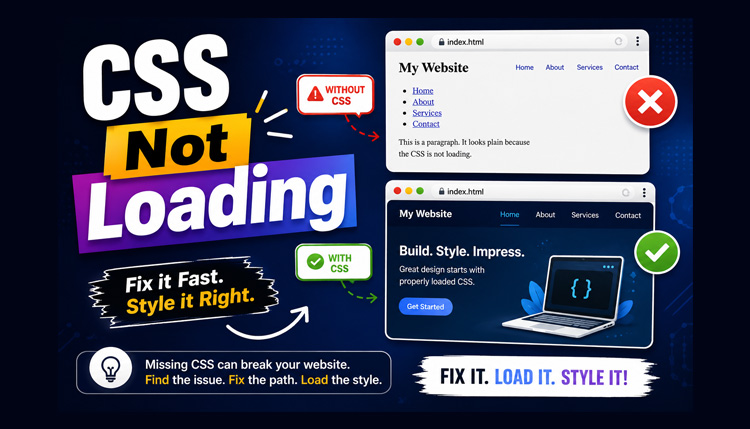
You finish writing your HTML page, create a CSS file, refresh the browser, and… nothing changes. The page still looks plain, with default fonts, black text, and no styling.
If this has happened to you, don’t worry. CSS not loading is one of the most common problems beginners face, and in most cases, the solution is surprisingly simple. A small mistake like an incorrect file path or filename is often enough to stop your stylesheet from loading.
This guide covers the most common reasons why CSS doesn’t load and shows you how to fix each issue with practical examples.
How Do You Know CSS Isn’t Loading?
One of the easiest ways to tell that your CSS isn’t loading is when your website suddenly looks like a plain HTML page. All the styling disappears, leaving only basic text and elements displayed with the browser’s default appearance. You may notice that colors are missing, custom fonts aren’t applied, spacing between elements disappears, and buttons look like standard browser buttons instead of your designed style.
In many cases, the entire layout breaks, causing columns to stack incorrectly or content to appear out of place. If your webpage shows several of these symptoms at once, the stylesheet may not be loading correctly, or there may be another CSS issue affecting the page.
Common causes include an incorrect file path, a missing <link> tag, browser caching, or a server configuration issue. Once you identify the cause, the fix is often straightforward.
1. Check the CSS File Path
The first thing to verify is the path inside the < link > tag.
<link rel="stylesheet" href="style.css">If your CSS file is inside a folder:
project/

index.html

css/

style.css
Use:
<link rel="stylesheet" href="css/style.css">A wrong folder name is the most common reason CSS fails to load.
2. Make Sure the Filename Is Correct
Suppose your file is actually named: styles.css
But your HTML contains:
<link rel="stylesheet" href="style.css">The browser cannot find the file. Instead of typing filenames manually, copy and paste them whenever possible.
3. Verify the File Extension
Sometimes beginners accidentally save: style.css.txt
instead of, style.css
Since Windows often hides file extensions, this mistake is easy to miss. Enable File name extensions in File Explorer and verify the actual filename.
4. Check the < link > Tag
Your stylesheet must be linked correctly.
Correct:
<link rel="stylesheet" href="style.css">Incorrect:
<link href="style.css">or
<link rel="style" href="style.css">The rel="stylesheet" attribute is required.
5. Place the Link Inside < head >
The CSS link should normally be inside the < head > section.
Example:
<head>
    <link rel="stylesheet" href="style.css">
</head>
Although browsers may still load it elsewhere, placing it inside < head > is the recommended practice.
6. Check Uppercase and Lowercase Letters
Your local computer may ignore uppercase letters, but many hosting servers do not.
Example:
Actual file: Style.css
HTML:
<link rel="stylesheet" href="style.css">This may work locally but fail after uploading the website. Use lowercase filenames consistently.
7. Save the CSS File Before Refreshing
Many developers edit CSS, refresh the browser, and wonder why nothing changes. Simply forgetting to save the file can waste several minutes.
Before refreshing:
- Press Ctrl + S
- Reload the page
It sounds simple, but it happens more often than you’d expect.
8. Clear Your Browser Cache
Sometimes the problem isn’t your CSS file at all; it may be caused by your browser cache. Browsers can store CSS files locally so that websites load faster. However, the browser may continue using an older version of the stylesheet after you’ve made changes.
As a result, your latest CSS updates may not appear, which can make it seem like the stylesheet isn’t loading correctly.
To make the browser request the latest version of your CSS file, try a hard refresh. On Windows, press Ctrl + Shift + R or Ctrl + F5. On Mac, press Command + Shift + R.
If your updated styles appear after the hard refresh, the browser was likely using a cached version of the CSS file.
During development, you can also use your browser’s Developer Tools to disable caching while DevTools is open. This can make testing CSS changes easier because you don’t have to manually clear the cache after every change.
9. Use Developer Tools to Check CSS Loading
If your CSS is not loading, press F12 to open your browser’s Developer Tools. Go to the Network tab and refresh the page. Look for your CSS file in the list of network requests. If it shows 404 Not Found, the browser couldn’t find the stylesheet. This is usually caused by an incorrect file path, an incorrect filename, or a missing CSS file.
If the CSS file returns 200 OK, the browser successfully received the stylesheet. In that case, the CSS not loading problem may actually be caused by an issue within your CSS code, such as a syntax error, incorrect selector, or a style being overridden by another rule.
You can also click the CSS file in the Network tab to inspect its response and confirm that the browser received the expected stylesheet.
10. Check for CSS Syntax Errors
One missing brace can prevent part of your stylesheet from working.
Incorrect:
body{
background:#f5f5f5;

h1{
color:blue;
}
Correct:
body{
background:#f5f5f5;
}

h1{
color:blue;
}
Use proper indentation to make mistakes easier to spot.
11. Verify Relative Paths
If your HTML file is inside a different folder than your CSS file, make sure you’re using the correct relative path. For example, if about.html is inside a pages folder and style.css is inside a css folder, use:
<link rel="stylesheet" href="../css/style.css">The ../ tells the browser to go back one folder before looking for the CSS file. Without it, the browser searches in the wrong location, and your stylesheet won’t load.
12. Check Whether Another CSS File Is Overriding Your Styles
Sometimes your stylesheet loads correctly, but another stylesheet overrides your rules.
For example:
<link rel="stylesheet" href="bootstrap.css">
<link rel="stylesheet" href="style.css">
Normally, the stylesheet loaded later has higher priority when selectors have the same specificity. If your custom CSS comes first, some styles may be replaced by framework styles.
13. Inspect Elements
Open Developer Tools and select the Elements tab. Click the element that isn’t styled.
On the right side, you’ll see:
- Applied CSS rules
- Overridden properties
- Missing selectors
This helps identify whether the stylesheet loaded but the selector doesn’t match the HTML.
14. Verify Hosting Upload
Many beginners upload only the HTML file and forget the CSS folder.
Check your hosting directory.
Example:
public_html/

index.html

css/

style.css
If the CSS folder wasn’t uploaded, the browser cannot load it.
15. Check File Permissions
Although uncommon, incorrect file permissions can cause CSS not loading issues on some web servers. If your file path is correct and the stylesheet still isn’t being served, check whether the CSS file has the appropriate permissions for the web server to read it.
If you’re using shared hosting, you can usually check file permissions through your hosting control panel or an FTP client. Avoid changing permissions unnecessarily, and use the settings recommended by your hosting provider.
Conclusion
When CSS is not loading, the problem is usually small but easy to overlook. In most cases, it comes down to an incorrect file path, a filename mismatch, a missing <link> attribute, browser cache, or a simple syntax error.
Instead of guessing, check each possibility one by one. Start with the file location, verify the <link> tag, inspect the browser’s Developer Tools, and confirm that your stylesheet is actually being loaded. Once you build this troubleshooting habit, you’ll spend less time searching for errors and more time creating well-designed websites.